Key Takeaways
- Point to the exact part of the design before describing a change.
- Explain the problem and the intended result, not just your personal preference.
- Keep one issue in each comment thread and distinguish required changes from suggestions.
- Review the latest version and resolve feedback only after checking the change.
- Use a clear file status so everyone knows when work is ready for approval.

You open a design and spot something that feels wrong. The button disappears into the page. The headline is hard to scan. The image competes with the message. Then you leave a note: “Can we make this better?”
The designer now has to guess what “better” means. That guess can lead to another revision, another discussion, and another round of feedback that still misses the original concern.
You do not need to be a designer to give helpful feedback. You need to make the issue understandable. The most useful comments connect a location, a problem, a reason, and a desired outcome. Here is how to put that into practice.
1. Start With the Goal of the Review
Before commenting, agree on what the work needs to achieve. A landing page might need to make a service easy to understand and an enquiry easy to start. A campaign graphic might need to communicate one offer quickly.
Also agree on what is being reviewed. If this round is about layout and messaging, a request to rethink the entire visual identity introduces a different decision. It may be a valid concern, but it needs its own conversation about scope.
- Audience: Who will see this design?
- Action: What should they understand or do?
- Scope: What decisions are open in this round?
This gives the team a shared reference point. “The offer is hard to find” is more useful than “I prefer the previous layout” when the goal is to make the offer clear.
2. Point to the Exact Spot
“The text near the image” can describe several places on a page. Mark the heading, button, image, or spacing you mean. A precise location saves the designer from having to match your comment to the right element.
In Jottrly, reviewers can place numbered pins or use drawings, highlights, arrows, and text notes directly on the work. Each mark has its own comment thread. See the annotation tools on the Product page for the visual workflow.
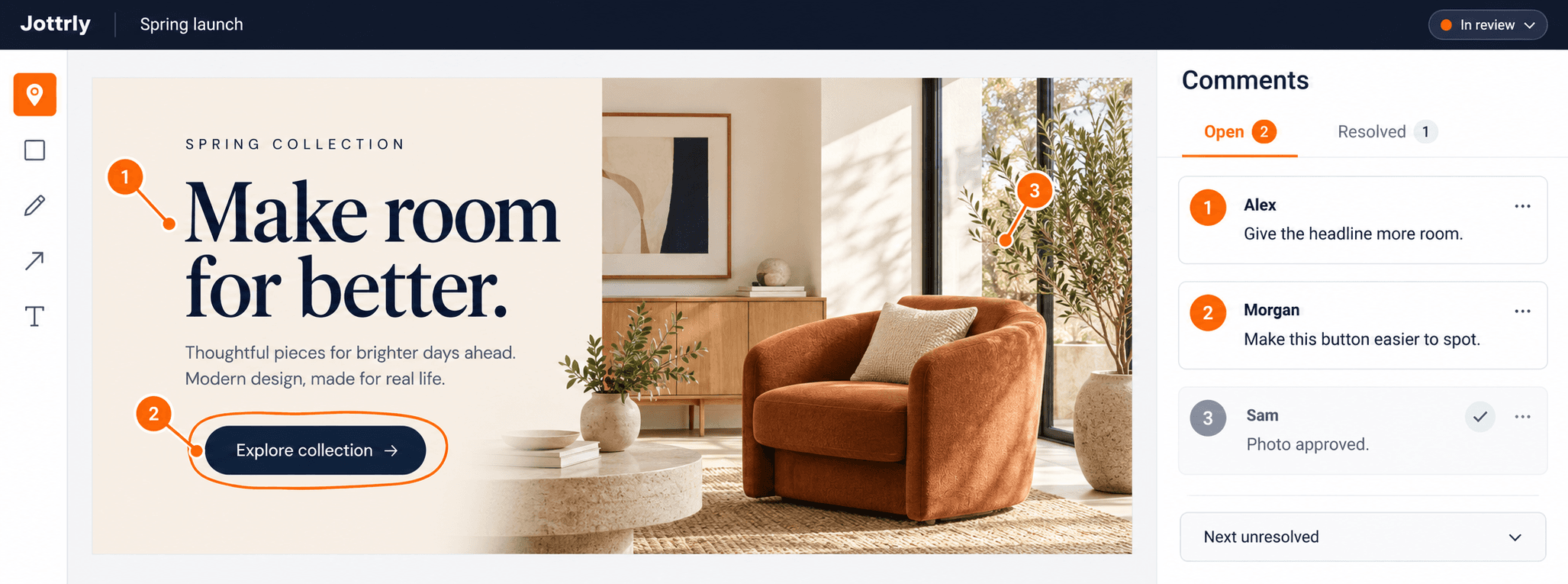
Use a pin for a specific element and a box or highlight for an area. If the concern is the overall page hierarchy, say that explicitly instead of attaching a broad request to an unrelated detail.
3. Explain the Problem Before Suggesting a Fix
“Make the button orange” gives the designer an instruction, but no reason. “The main action blends into the surrounding content” explains what needs attention and lets the designer evaluate a suitable fix.
A useful comment can follow this format:
At [location], I notice [problem]. This matters because [reason]. Could we [desired outcome]?
For example: “At the main enquiry button, the action blends into the surrounding content. This matters because contacting us is the page’s primary goal. Could we make that action easier to identify?”
Vague Feedback
“Make it pop.”
“This feels off.”
“Can we try something else?”
Useful Feedback
“The headline and body text look equally prominent. Could we make the headline easier to scan first?”
Suggestions still help. Just distinguish the problem from your proposed solution: “Increasing the headline size might help, but I’m open to another way to improve the hierarchy.”
4. Keep One Issue in Each Thread
A comment that asks for a new headline, a different image, and a larger button contains three decisions. If the button is fixed, is the comment resolved? What happens if the headline needs more discussion?
Separate unrelated issues so each has a clear answer and completion state. Keep replies about the same issue in its existing thread, and use @mentions when you need a particular teammate’s input.
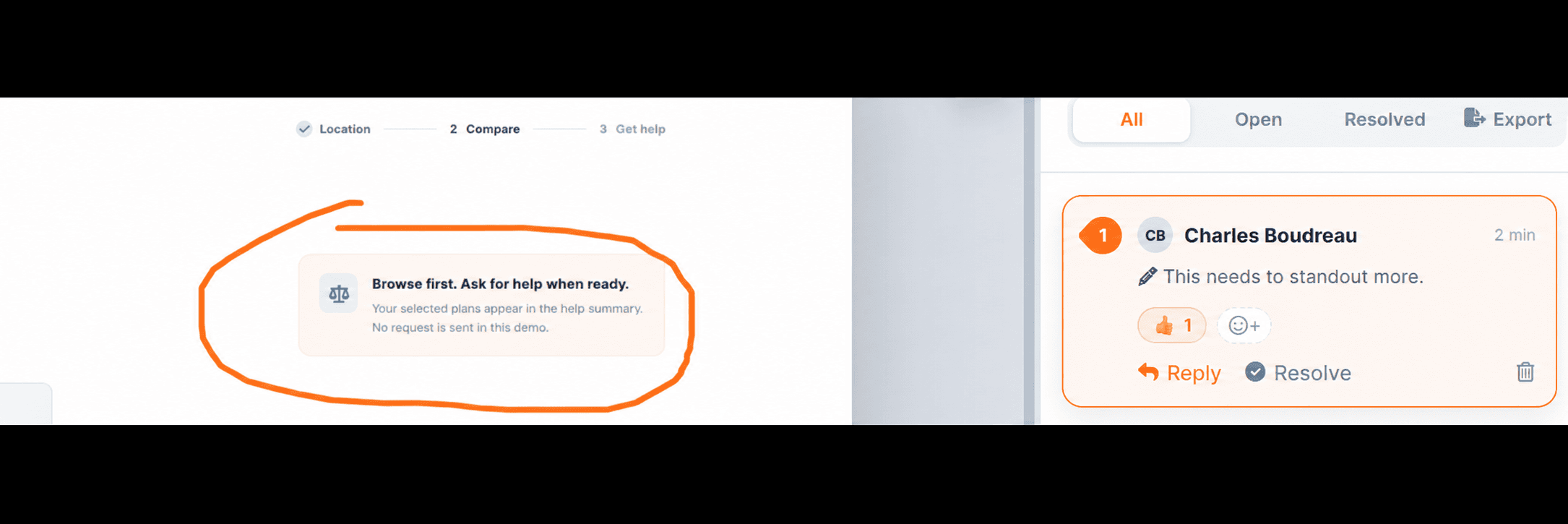
The comment workflow keeps that discussion with the design. It also makes it easier to resolve finished feedback and move to the next unresolved issue.
Put Your Next Review in One Place
Upload your work, mark the exact spot, and keep the discussion attached to the design.
5. Separate Required Changes From Suggestions
Not every comment should carry the same weight. An incorrect phone number needs fixing before approval. A preference for a different image crop may be open to discussion.
You can make this distinction in the comment text without adding another system. Start a comment with “Required,” “Suggestion,” or “Question,” then explain why you chose that label. Agree on these labels with your team so they mean the same thing to every reviewer.
- Required: “The contact number is incorrect. Replace it before this goes live.”
- Suggestion: “Could we try a tighter image crop so the product is easier to see?”
- Question: “Is this headline approved copy, or is it still open for revision?”
For agency work, it helps to consolidate conflicting feedback before sending the next round to the designer. Two people asking for opposite changes need a decision, not two separate instructions.
6. Check the Revision Before Resolving Feedback
A new upload does not automatically mean every issue has been fixed. Review the latest version against the original request. Confirm that the change addresses the concern, then resolve the comment.
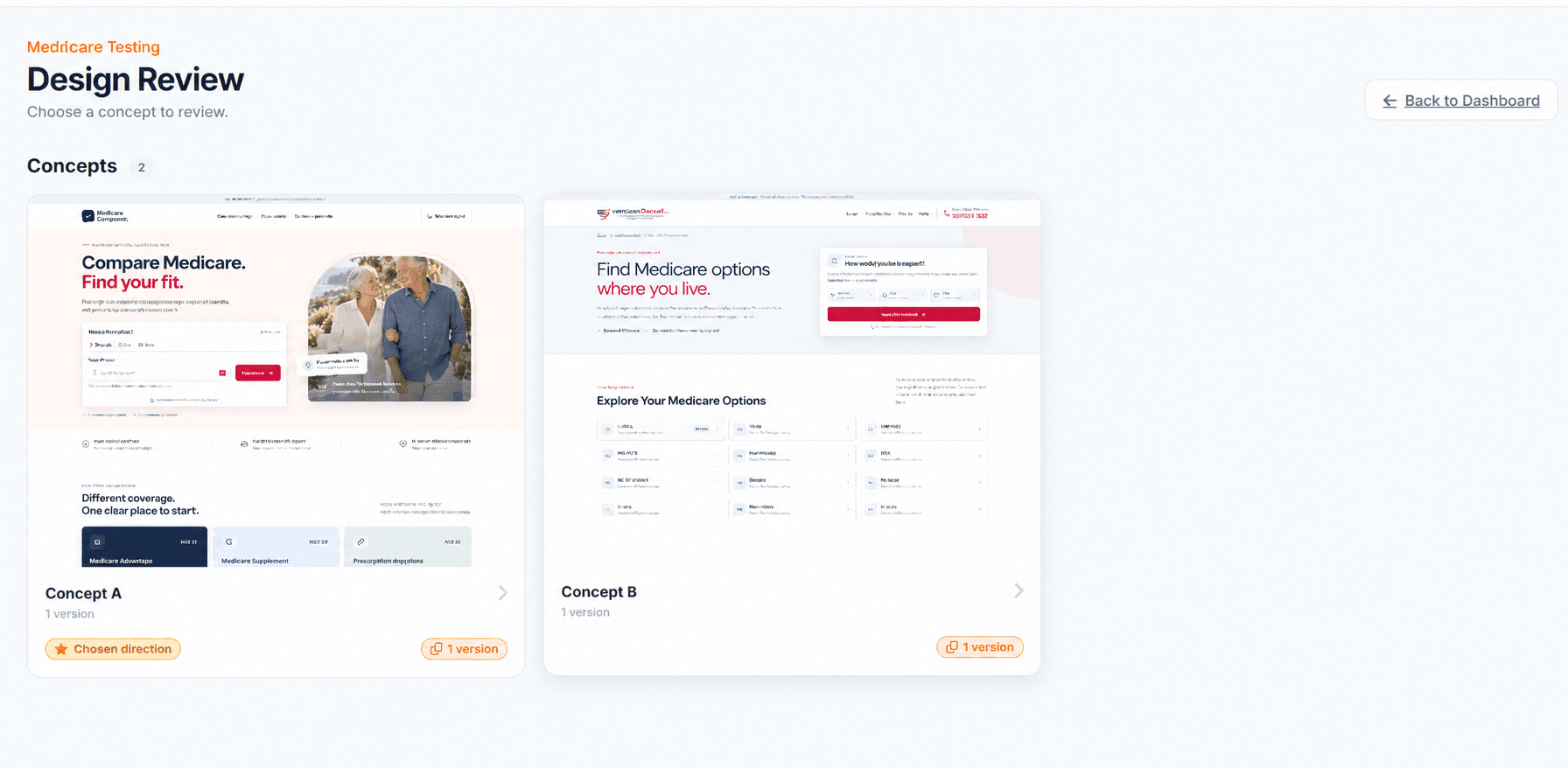
Jottrly supports version history, resolved comments, and a Next unresolved button. File statuses make the wider decision visible: In review, Changes requested, or Approved.
Resolving a comment is not the same as approving the file. A comment can be complete while other issues remain open. Reserve approval for the point when the required changes have been checked and the appropriate person is ready to sign off.
7. Make the Review Process Easy to Follow
Good comments work best inside a clear process. Tell reviewers what to assess, which version to use, and who will make the final decision. Share the work with the people who should have access.
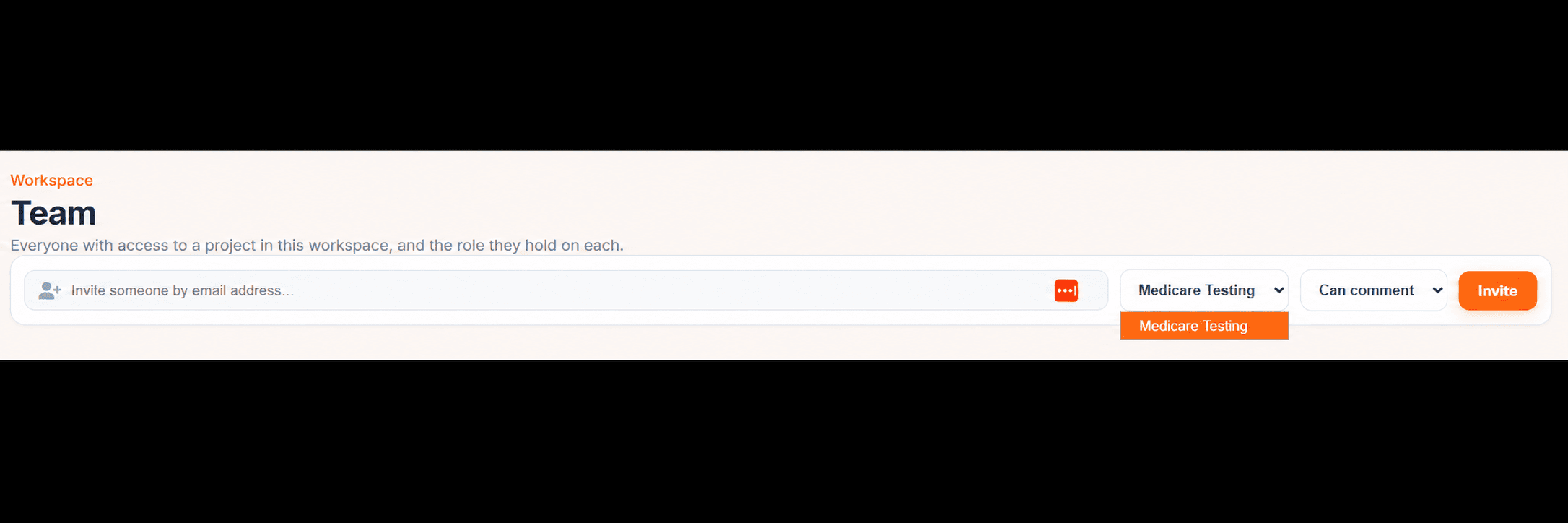
Jottrly uses workspaces with Owner, Admin, and Member roles, alongside share links and asset privacy controls. The How It Works page shows the upload, feedback, and approval sequence. Explore the product features to see the available review tools.
Your Next Review Checklist
- Confirm the audience, goal, and scope of this round.
- Review the current version of the work.
- Mark the exact location of each issue.
- Explain the problem, its impact, and the desired outcome.
- Separate required changes from suggestions and questions.
- Check the revision before resolving the comment.
- Confirm the file’s final review status.
Useful feedback does not need to be long. It needs to remove the guesswork. A few specific sentences can give a designer more direction than a paragraph of preferences.
Frequently Asked Questions
What makes design feedback actionable?
Actionable feedback identifies the exact part of the design, describes the problem, explains why it matters, and states the outcome you need. Add a priority if it affects what should be fixed first.
How do I give feedback without telling the designer exactly what to do?
Describe the user problem and the intended result. For example, say that the main action is difficult to find rather than prescribing a particular color. Include your suggested solution as an option and leave room for the designer to propose another approach.
Should I leave one comment or several?
Use one comment thread for each distinct issue. Keep related discussion together, but separate a button problem from an image-crop problem so each can be addressed and resolved independently.
Can clients leave feedback in Jottrly?
Jottrly supports share links for client reviews. Send a review link to the people who should have access and keep their feedback attached to the design. Guest account requirements are still provisional in this website preview.
How do I know when a review is finished?
Check that required changes have been reviewed and open issues have been addressed. In Jottrly, use resolved comments alongside the file status: In review, Changes requested, or Approved. A resolved comment and an approved file describe different parts of the process.
What can I review in Jottrly?
Jottrly supports designs, screenshots, and PDFs. Reviewers can use numbered pins, drawings, highlights, arrows, and text annotations, with comment threads and @mentions attached to the feedback.
Give Feedback Where the Work Happens
Bring your designs, screenshots, and PDFs into Jottrly and keep the next conversation in context.
Compare the demo plans and limits or explore the product features.